This is a SEO version of NDTC_User_Guide. Click here to view full version
« Previous Page Table of Contents Next Page »58

Creating or Editing a Favorites List Step 1: Create or Edit
Follow the steps above in “Go To Favorites,” highlight Create or Edit, and press OK.
Step 2: Name Your Favorites List
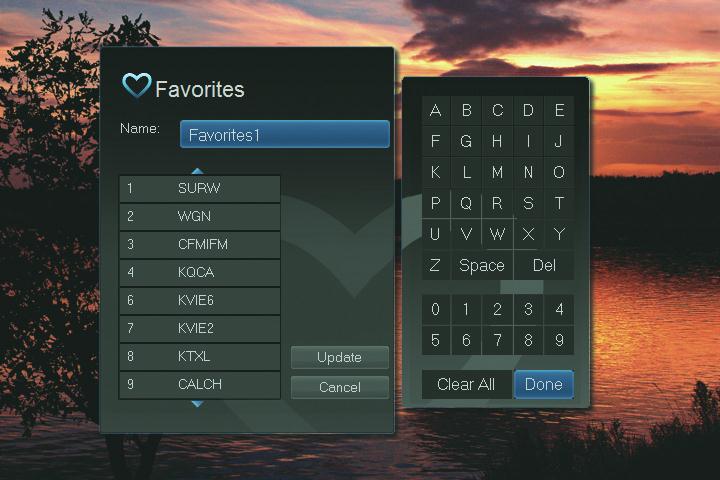
You will see the Favorites create/edit screen. This screen displays every channel offered.
The Name: box is already highlighted. Press OK to use the on-screen keyboard to change the name for your favorites list. First, highlight Clear All and press OK to clear the default name. Highlight each letter in the new name and press OK. Once you have entered the name, highlight Done and press OK.
Step 3: Choose Your Favorite Channels
Highlight a channel to add to or remove from your favorites list and press OK. A channel included in the favorites list shows a heart icon to the right of the channel info.
To go to the next screen of channels, press the Down Arrow Key. To save your favorites list, highlight Update at the bottom right of your screen and press OK.
To cancel your favorite list without saving it, highlight the Cancel button at the bottom right of your screen and press OK.

Delete a Favorites List Step 1: Select Delete
Follow the steps in “Go To Favorites,” then highlight Delete and press OK. Step 2: Select the Favorites List to Delete
Highlight the favorites list you want to delete and press OK.
13 Favorites
This is a SEO version of NDTC_User_Guide. Click here to view full version
« Previous Page Table of Contents Next Page »