This is a SEO version of NDTC_User_Guide. Click here to view full version
« Previous Page Table of Contents Next Page »33

representation of where you are in the recording. The lighter section indicates how much of the recording has been played.
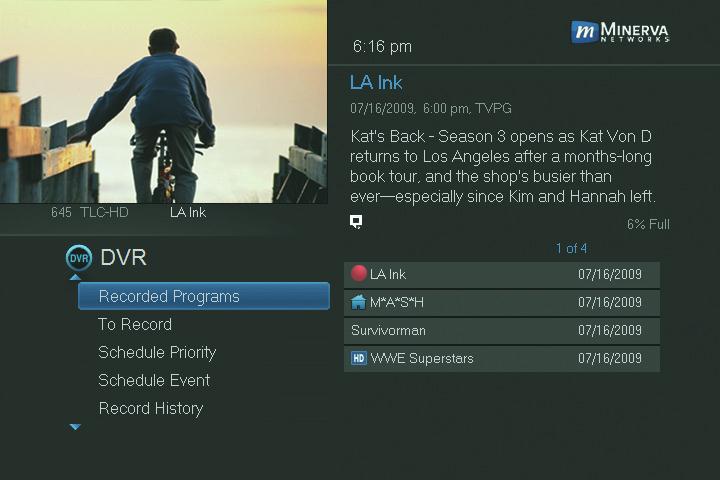
The DVR Menu
The DVR item on the Menubar provides access to previously recorded programs, upcoming recordings, prioritize series recordings, schedule an event, and view your recording history.
Go To DVR Press MENU, highlight DVR and press OK.
The DVR Menu Quick Reference
Recorded Programs lists programs you have already recorded. Go here to watch, lock or delete these recorded programs.
To Record lists all Recording events you have scheduled, and allows you to cancel any future recording events.
Schedule Priority allows you to give priority for one series recording over another in the event of a scheduling confict.
Schedule Event allows you to create a Recording, Reminder or Autotune event for individual or recurring programs.
Record History is a log of when recordings start, complete or are cancelled.
Go To Recordings
Highlight Recorded Programs and press OK.
A list of your recorded programs appears to the right.
Recordings you have not yet watched are listed with white text; those you have are listed with grey text. If a program is still being
9 DVR
This is a SEO version of NDTC_User_Guide. Click here to view full version
« Previous Page Table of Contents Next Page »