This is a SEO version of NDTC_User_Guide. Click here to view full version
« Previous Page Table of Contents Next Page »34

recorded a red dot icon will appear to the left of the program’s name. In the lower right of the info area a percentage full item is shown. This indicates the percentage of total recording space used.
Sorting Recordings
Highlight Recorded Programs and press OK to bring up your recording list. The frst listing will be highlighted. You can sort your recordings alphabetically by title, by the date recorded, by channel that originally aired the program, or by whether you have or have not viewed the recording.
To sort your recordings by any of those categories, press the Left Arrow Key to shift the highlight to the left. Highlight the category you want to use to sort and press OK. For example, if you highlight Date and press OK, your recordings will be sorted by the date recorded with oldest at the top and newest at the bottom.
You can reverse the sort order for any category by pressing OK again on that category. Using the above example, pressing OK again on Date would put your newest recordings at the top and oldest at the bottom.
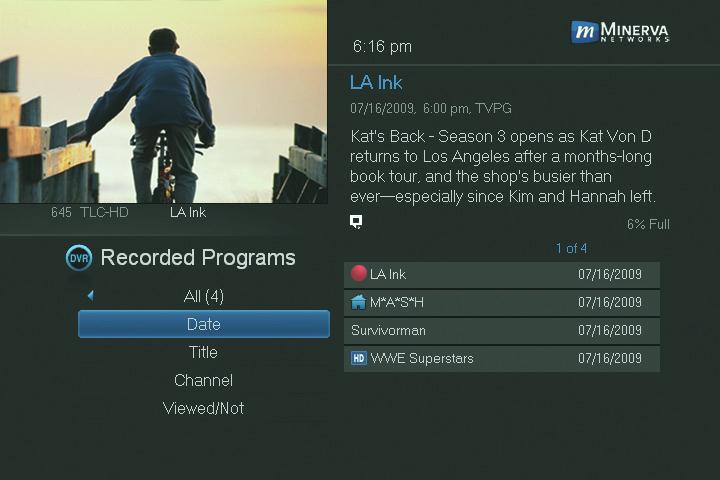
Watching a Recorded Program Step 1: Pick a Recording
Highlight the recording you want to watch and press OK.
Step 2: Play the Recording

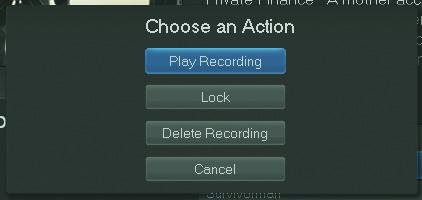
Highlight and press OK.
Step 3: Watch the Recording
You will exit to your recording as it begins playing. The Infobar will appear for a few seconds with a green icon to the right to indicate you are playing a recording.
9 DVR
This is a SEO version of NDTC_User_Guide. Click here to view full version
« Previous Page Table of Contents Next Page »