This is a SEO version of NDTC_User_Guide. Click here to view full version
« Previous Page Table of Contents Next Page »30
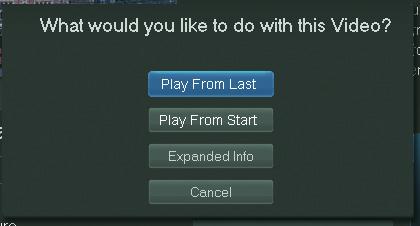
Step 2: Play Your Rental Highlight Play From Start and press OK to start play at the beginning of the program.
If you have already watched part of the program and want to pick up where you left off, highlight Play From Last and press OK.
Controlling Rental Playback
While watching a VOD Rental, you can use the Playback Control Buttons to pause, rewind, fast forward or stop playback.

Press PAUSE to halt playback at the current point.
Press REWIND or FAST FORWARD to reverse or advance playback from the current point.


Press PLAY to resume watching at normal speed.
Press STOP to exit playback of the program.
The Slider
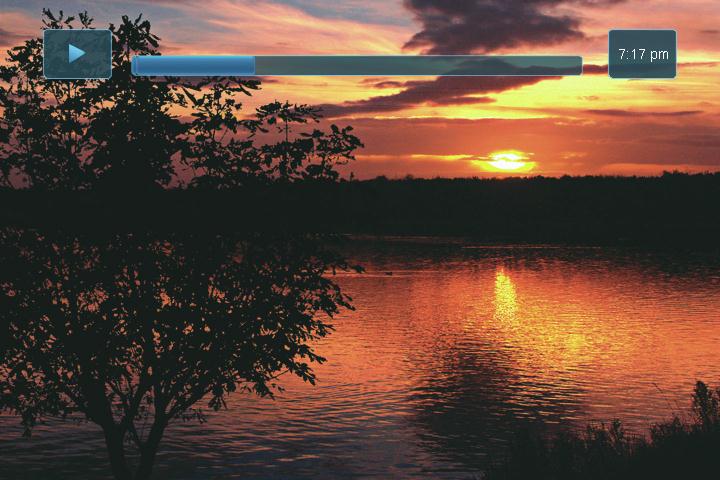
Any time you press one of the Playback Control Buttons while watching a previously recorded program, the DVR playback controller is displayed. The box to the left indicates the playback function in use. The bar in the middle gives a visual representation of where you are in the recording. The flled-in portion of the progress bar indicates how much of the recording has been played.


8 Rentals
This is a SEO version of NDTC_User_Guide. Click here to view full version
« Previous Page Table of Contents Next Page »