This is a SEO version of NDTC_User_Guide. Click here to view full version
« Previous Page Table of Contents Next Page »29
8 Rentals

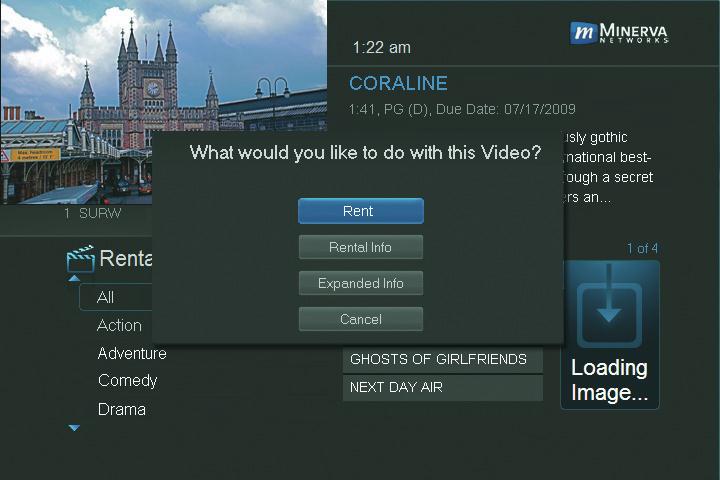
Step 2: Rent Highlight Rent and press OK.
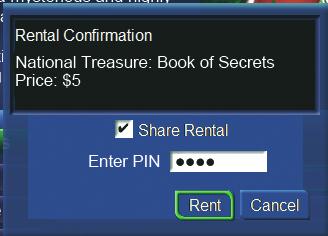
Step 3: Confrm Your Rental The confrmation screen appears. If you want other users to be able to watch this VOD Rental, highlight the Share Rental check box and press OK.
Now highlight the text box next to Enter PIN and use the Number Pad to enter your PIN, then highlight Rent and press OK to confrm your VOD Rental.
Watching Your VOD Rental
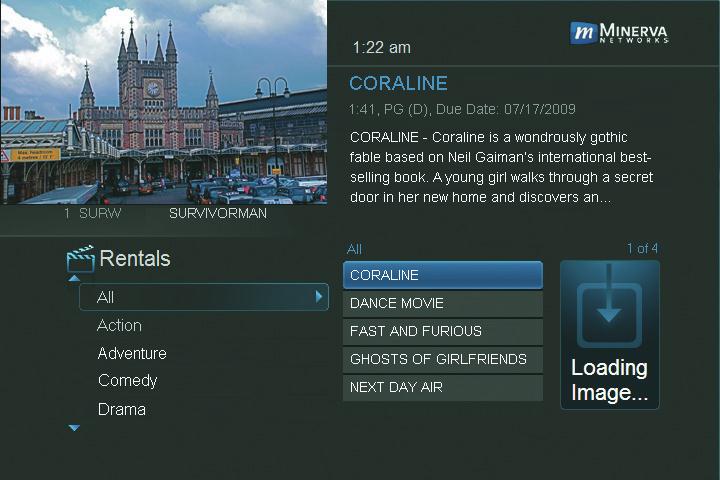
You can play your VOD Rental from Rentals or from My Library. Note: For information on the My Library, see section 10 My Library.
Step 1: Pick Your Rental
Highlight your VOD Rental and press OK.
This is a SEO version of NDTC_User_Guide. Click here to view full version
« Previous Page Table of Contents Next Page »