This is a SEO version of NDTC_User_Guide. Click here to view full version
« Previous Page Table of Contents Next Page »22


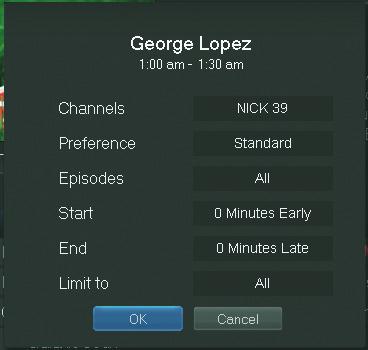
Step 3: Adjust Series Recording Options
Use the Up and Down Arrow Keys to choose any of the options and press OK. Once you see arrowheads above and below the options setting box, use the Up and Down Arrow Keys to adjust that setting.
Channels determines whether the series is recorded when aired on the channel originally set to record, or record the series no matter what channel airs it. Preference determines whether to record the program when shown in standard defnition or only when shown in high defnition.
Episodes determines whether to record re-runs and new episodes of the series or only new episodes.
Start and End determines how much time to add at the start and end time of the recording so that none of the program is missed.
Limit To determines how many episodes of the series are saved. If set to anything other than all, the system will delete the oldest recorded episode of the series once the limit is reached.
Once you have adjusted the series settings, highlight OK and press OK to save your changes.
Skipping an Episode
Once you have created a series recording, you can manually skip any episode.
Step 1: Pick the Episode
Locate the episode in the series you want to skip. Highlight its listing and press OK.
6 Guide & Recording
This is a SEO version of NDTC_User_Guide. Click here to view full version
« Previous Page Table of Contents Next Page »