This is a SEO version of NDTC_User_Guide. Click here to view full version
« Previous Page Table of Contents Next Page »38

Editing a Scheduled Event
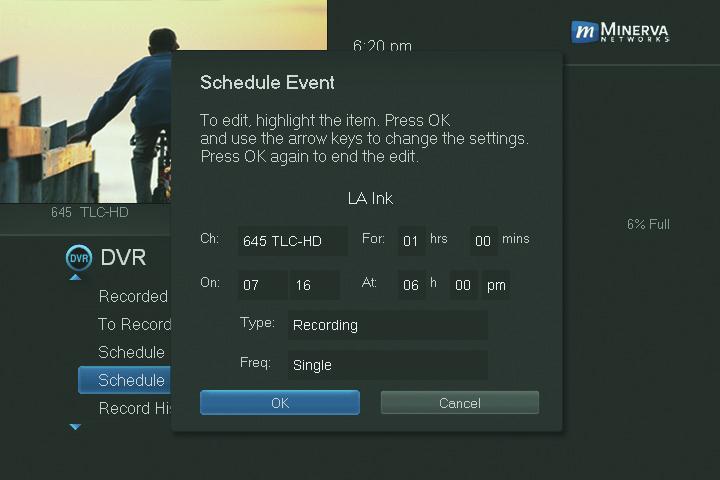
Once you choose Schedule Event the Schedule Event window appears. Highlight the setting you want to change by Arrowing to the item and press OK. Use the Right and Left Arrow Keys to change the settings and press OK on the remote to end the edit. When all screens are completed, press OK on the screen to enter your information.
Your Recording History
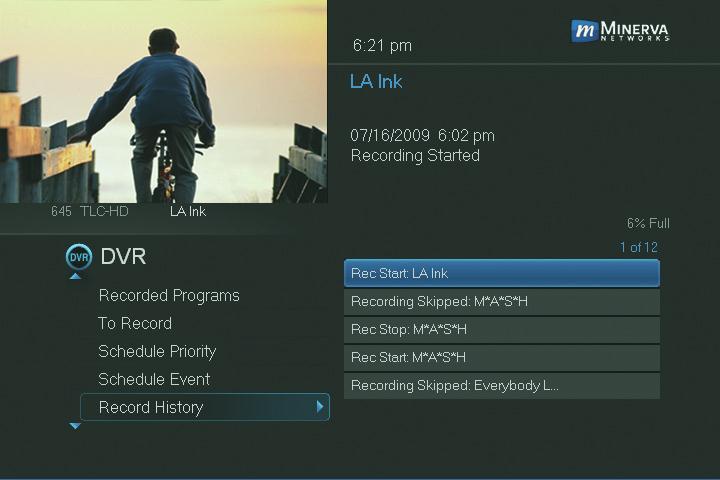
Record History is a log of all events related to your recordings such as recording started, recording completed or recording cancelled.
Go To Record History
Scroll down the DVR listings and highlight Record History and press OK.
Reviewing Record History
Press the Up and Down Arrow Keys on the remote to scroll through your record history.
When you Arrow to a Recording that is labeled Record Stop and push OK on your remote, the date and start time of the recodring appears above. The same process works for Record Start. Note: If your set top box does not support Recording, please contact customer service for an upgrade.
9 DVR
This is a SEO version of NDTC_User_Guide. Click here to view full version
« Previous Page Table of Contents Next Page »