This is a SEO version of NDTC_User_Guide. Click here to view full version
« Previous Page Table of Contents Next Page »26

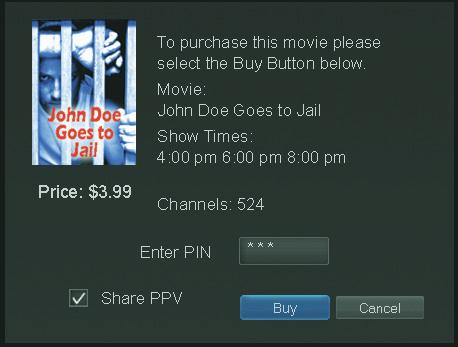
Step 3: Confrm Your Purchase
Highlight the box next to Enter PIN and enter your Pay Per View PIN using the Number Pad (0-9). For more information on PINs, see section 12 Settings.
If you want to allow any other user accounts to be able to watch this Pay Per View, highlight the checkbox next to Share PPV and press OK.
For more information on user accounts, see section 12 Settings.
Finally, highlight the Buy button and press OK. Step 4: Watch Your Pay Per View
At this point you can watch your pay per view just as you would any other program if it is currently playing. If you purchased your pay per view program in advance, you can schedule an Autotune or Reminder event so that you don’t miss it. For more information on setting Reminders and Autotunes, see Setting a Reminder, Autotune or Recording earlier in 6 Guide & Recordings.
7 Pay Per View
This is a SEO version of NDTC_User_Guide. Click here to view full version
« Previous Page Table of Contents Next Page »