This is a SEO version of NDTC_User_Guide. Click here to view full version
« Previous Page Table of Contents Next Page »55
12 Settings

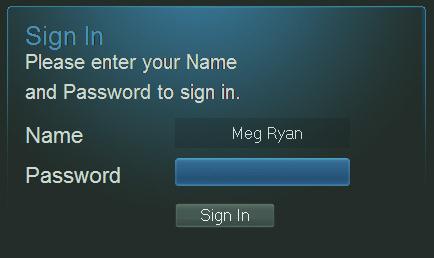
You will then be signed out of your account, and the Sign In screen will appear. Highlight the Name entry box and press OK. Use the Up/Down Arrows Keys to select the name for the desired account. Then highlight the Password entry box and enter the password used for the desired account, highlight Sign In and press OK.
Editing a User Account
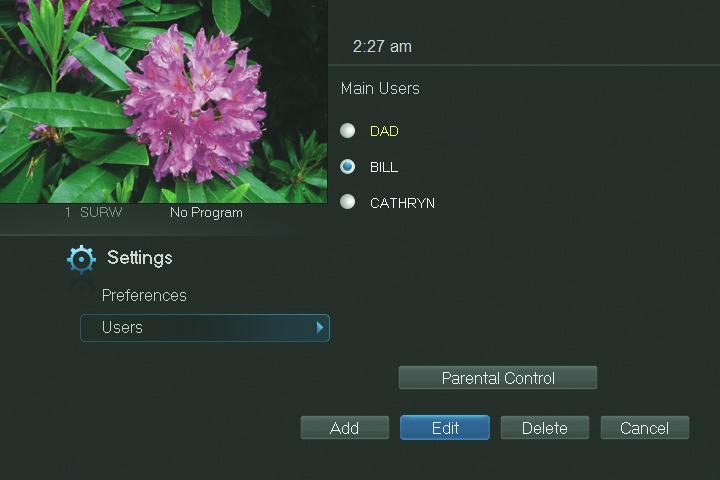
To edit a user account, highlight the user account and press OK, then highlight the Edit button and press OK. Note: The master account is the first account listed and is shown in yellow rather than white.
Using the Number Pad on your remote, enter the current password for this account.
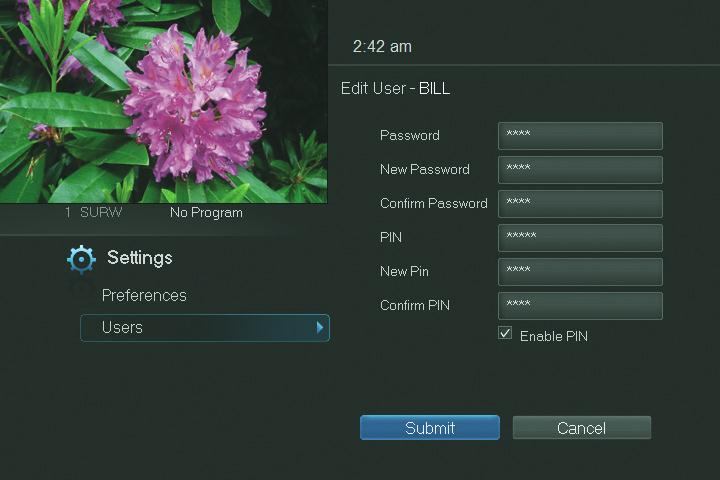
Now highlight New Password to change the password. Use the Number Pad on your remote to enter a numeric password.
Highlight Confirm Password to re-enter the password. Use the Number Pad
This is a SEO version of NDTC_User_Guide. Click here to view full version
« Previous Page Table of Contents Next Page »